macOS (Darwin) setup
This document describes how to get a productive macOS setup (terminal + apps + UX tweaks) consistent with the rest of this repo.
Windows/Linux behavior mimicking in macOS
If you're coming from Windows or Linux, macOS has some different behaviors. You can remap keys to make the layout feel closer to Windows. This is useful if you frequently switch between macOS and Windows/Linux, as it reduces muscle memory conflicts and makes your workflow more consistent across platforms.
Here are useful tweaks to make it feel more familiar:
- Invert mouse scrolling: By default, macOS uses "natural" scrolling (like on iOS). To get Windows-like scrolling behavior, go to System Settings > Mouse and invert the scrolling.
- Keyboard layout: Change macOS shortcuts to behave like Linux/Windows (This is useful if you want to use the same keyboard layout to copy-paste on all your devices)
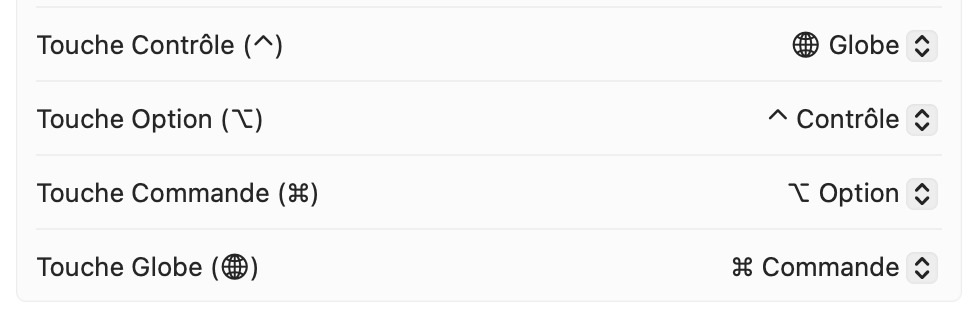
Keep the mapping consistent and avoid mixing multiple remap tools.
After doing this, when you see some tutorials using macOS keyboard shortcuts, remember that you changed the keyboard layout. - Command (⌘) is the macOS equivalent of Ctrl and handles most system shortcuts (copy, paste, save, etc.). After remapping, the Globe key (leftmost modifier key) becomes your Command key, functioning exactly like the Ctrl key on Windows/Linux keyboards.
-
Option (⌥) is similar to Alt on Windows and is used for special characters and alternative shortcuts. After remapping, the Option key (rightmost modifier key) becomes your secondary modifier, equivalent to Alt on Windows/Linux.
-
Control (⌃) is typically used for secondary actions like interrupting commands in the terminal (Ctrl+C). After remapping, the Option key replaces Control for these terminal operations, so you'll use Option+C to cancel instead of Ctrl+C.
-
Globe key (the dedicated key on the far left) which is used for emojis and switch between languages has been remapped to function as Control (⌃), providing the traditional Control key functionality when needed.
-
Delete behaves like Backspace on Windows. To delete characters forward (like Delete on Windows), use Fn + Delete.
After remapping our keys, to copy-paste, it will be the same as in Windows/Linux keyboard: - Globe + C to copy - Globe + V to paste
Installation Process
The Awesome OS Setup provides a Terminal UI (TUI) application that guides you through the installation process. Once you run the one-liner installer, you'll see an interactive interface with the following steps:
Use README.md as it automatically handles the OS setup with the interactive TUI application.
1. Package Selection
The app displays all available packages from packages.yaml organized by category:
- Core tools: git, curl, zsh
- Dev tools: uv, Pycharm, Ghostty, Zed, Docker-Desktop
- Utilities: Raycast, Alt-Tab, AeroSpace, Shottr
- Messaging: Discord, WhatsApp, Telegram
- Media: Stremio, VLC
You can multi-select packages using the interactive interface.
2. Terminal Setup (Zsh + Oh My Zsh + Powerlevel10k)
This section is the same as Linux. Follow the terminal ZSH instructions in Linux.
3. Recommended apps
This repo’s packages.yaml includes my macOS brew packages and cask recommended apps.
Here is some config files for some apps:
3.1. Raycast
- Use Raycast as a “PowerShell equivalent” launcher.
- Replace Spotlight:
- Remove Spotlight shortcut in macOS keyboard settings.
- Configure the same shortcut for Raycast.
- Finder is still useful for macOS-specific settings and edge cases.
3.2. AeroSpace + JankyBorders
- AeroSpace: tiling window manager.
- Tutorial: https://www.youtube.com/watch?v=-FoWClVHG5g
- Docs: https://nikitabobko.github.io/AeroSpace/
- JankyBorders: adds window borders (requires AeroSpace).
- My config : .aerospace.toml
4. UI/UX tweaks
- Enable sudo with Touch ID:
command then drag the icon out of the menu bar (not all apps support it).
- Finder:
- Show tab bar.
- Show path bar.
- Show hidden files: command + shift + .
5. Notes
- Some apps do not have import/export settings and require manual configuration (e.g. Ice, AltTab).
- Some apps might need manual installation (e.g. Badgeify).